Your day isn't organised by pages. It's organised by the people you see. You get ready for a client, you talk, you write it up, and then there's the follow-up that makes the session count.
The Portal used to ask you to work the other way round: open Overview, go to Clients, find the notes, look for the export, remember the booking link. Each step was there, but you had to put them together yourself.
So we rebuilt it around the session: before, during and after. This post walks through what changed and why.
Every page now supports one part of a session
We started from one question: what does a dietitian need at each moment of a session, and what can wait?
That gave us four moments. Each one now has a clear home in the Portal, and anything that doesn't need you right now stays out of the way until it does.
- Before. See who's next and what needs you.
- Start. Pick the client and begin in one step.
- After. Review the draft note.
- Follow up. Recap, plan, meals, next booking.
Today shows what needs you, and nothing else
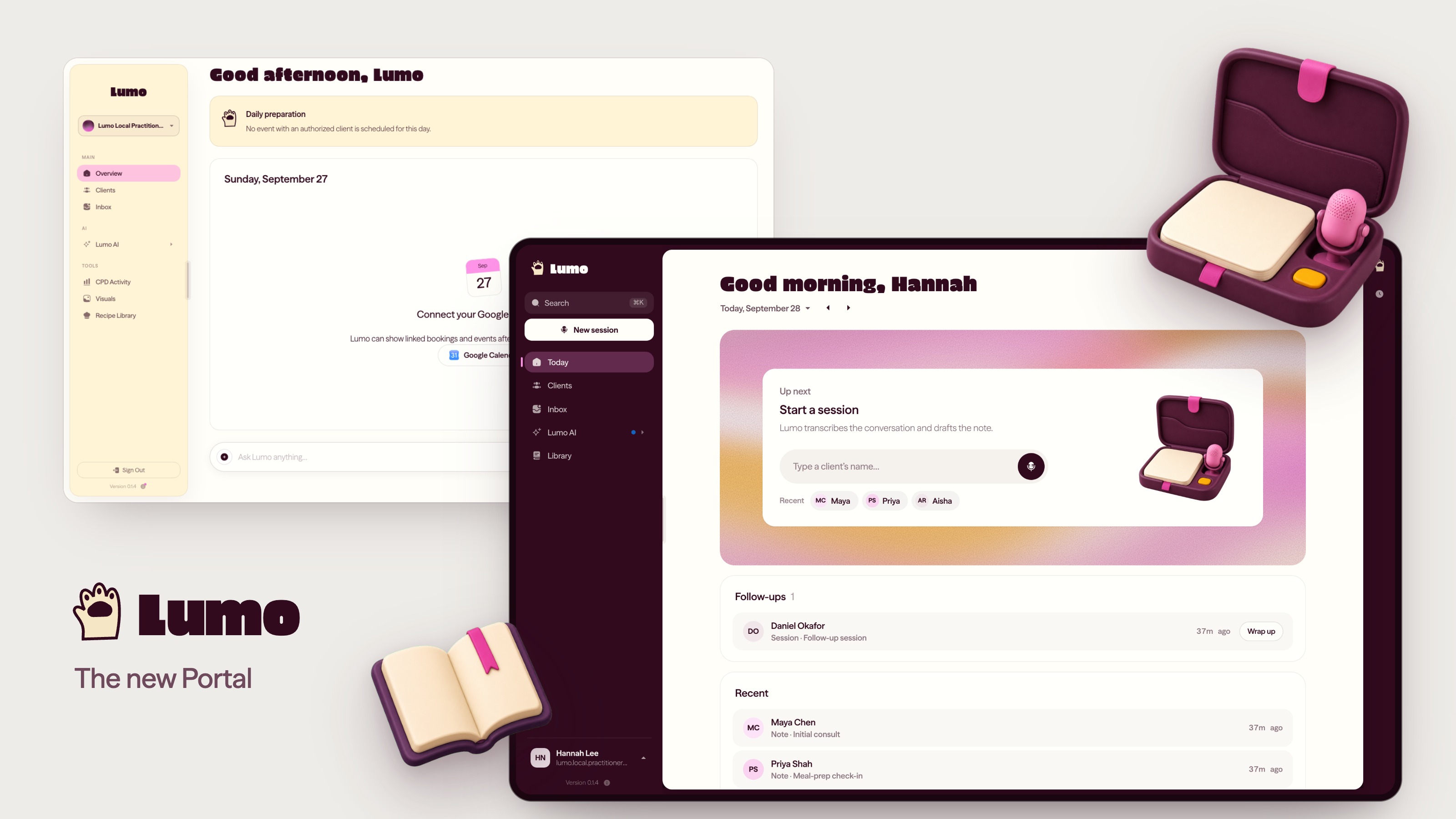
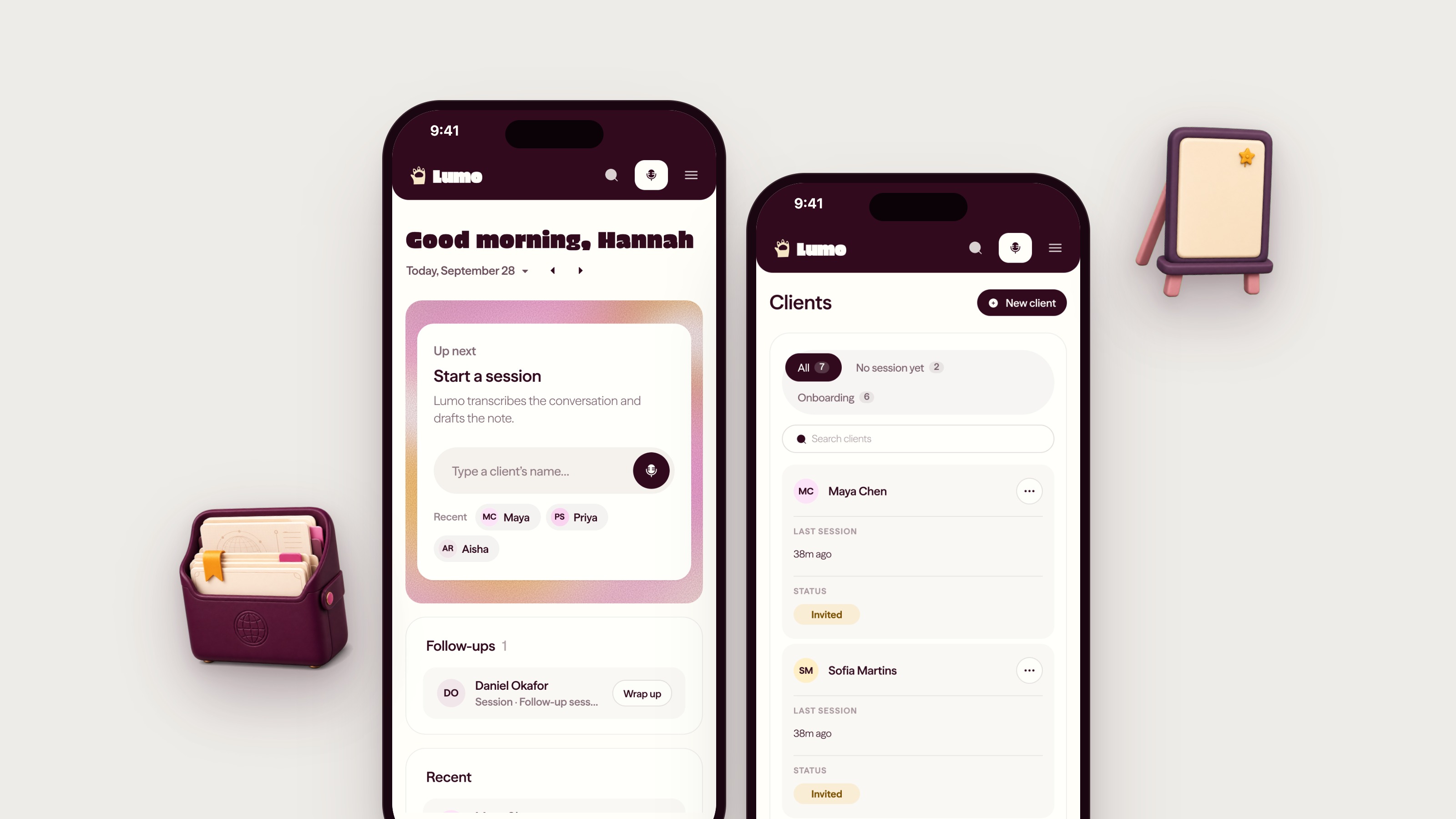
Overview is now called Today. It's a single page, read top to bottom, ordered by where each session is.
- Up next. The session you're about to run, and the quickest way to start it.
- Schedule. Your day, with a short preparation briefing, once your calendar is connected.
- Needs review. Draft notes waiting for you, each with a Review button.
- Follow-ups. Sessions you've reviewed but not wrapped up yet, and clients with messages or alerts waiting.
- Recent. What you worked on lately.
A section that's empty simply isn't there. On a quiet morning, Today is short. If you're new, it shows a Get set up list with only the steps you haven't done yet, such as connecting your calendar.
Type a name, press Enter
Starting a session used to take a button, a dialog and a search. Now the Up next card is the search.
Type the first letters of a client's name and press Enter, and the session starts with them. Your three most recent clients sit underneath as one-click buttons. When your calendar says someone is next, the card leads with them: Start with Maya.
If you prefer the keyboard, press S anywhere to open the client picker, or ⌘K to search the whole Portal.
The follow-up now has a place
A session isn't finished when the note is saved. The follow-up is where things tend to slip.
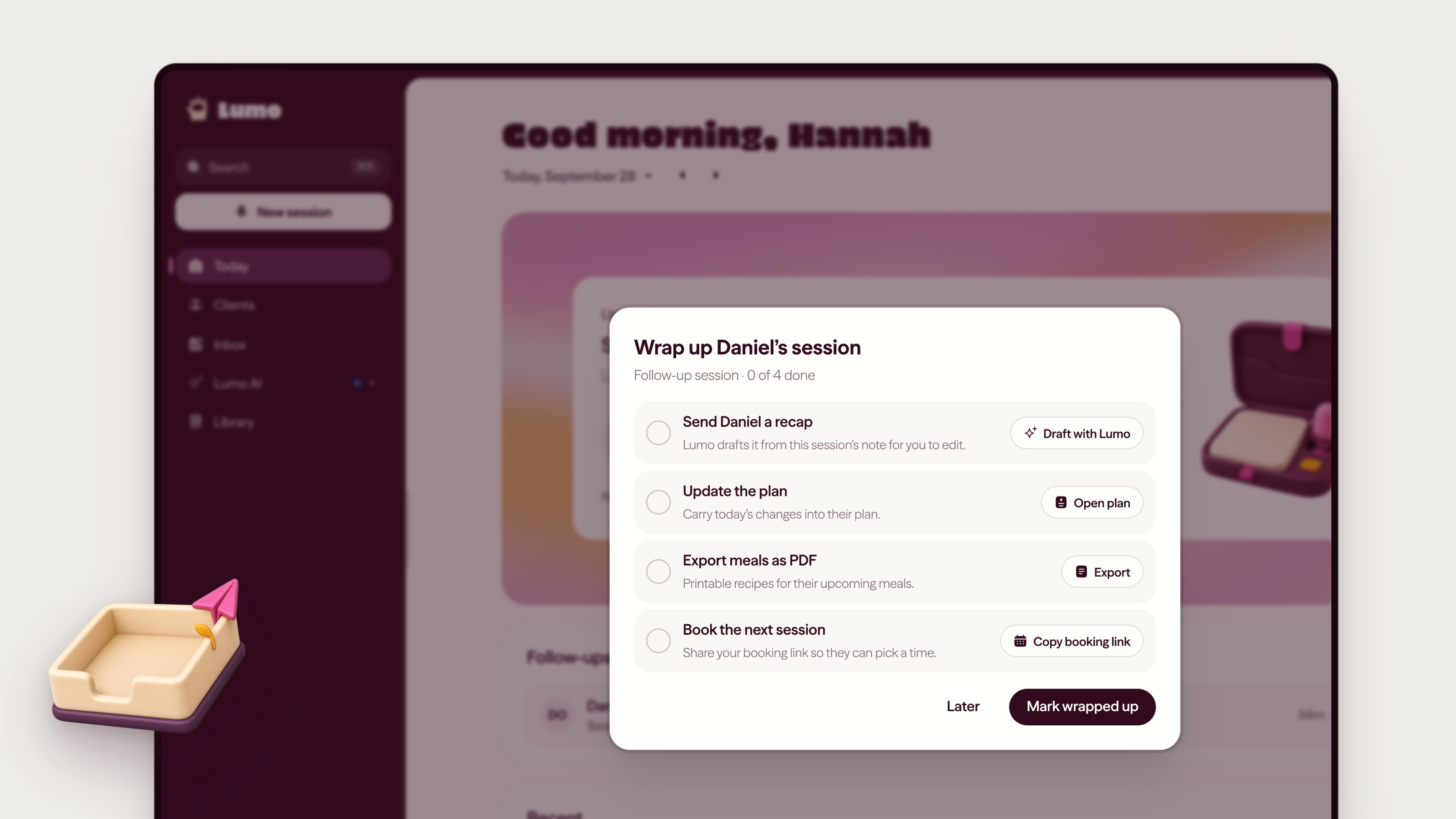
When you publish the draft from a transcribed session, the Portal opens Wrap up: a short checklist of what usually comes next. Every step is optional and takes one click.
- Send a recap. Lumo drafts a summary of the session in the side panel, ready for you to edit.
- Update the plan. Opens the client's plan so you can adjust it while the session is fresh.
- Export meals as PDF. The week's meals, ready to hand over.
- Book the next session. Copies your booking link, and ticks itself off if the next appointment already exists.
Anything you haven't wrapped up stays under Follow-ups on Today until you mark it done, so it doesn't depend on you remembering.
Drafts waiting for review now sit at the top of Today and of your Inbox. Press R to open the newest one.
Calmer lists, clearer client pages
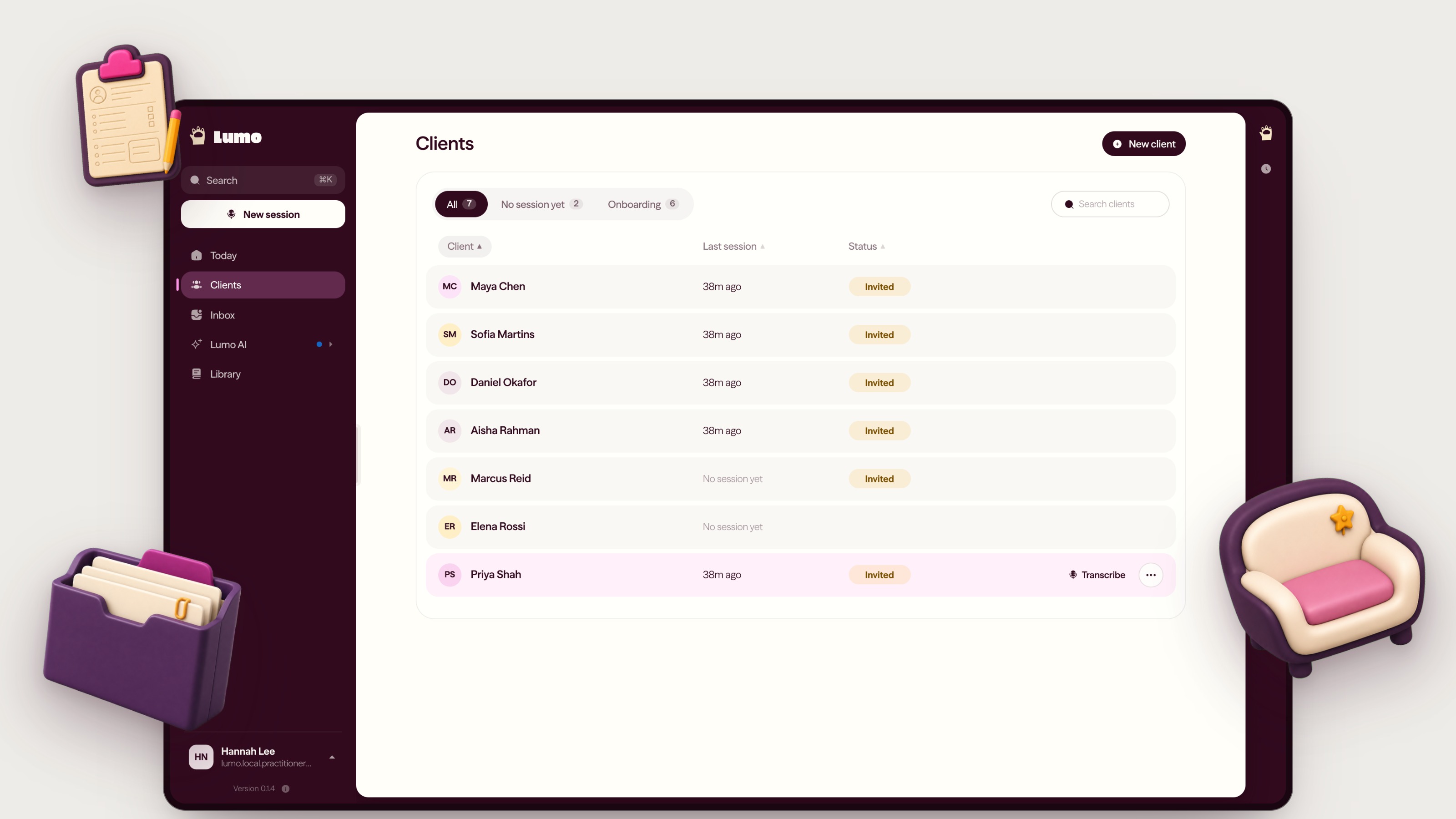
The Clients list shows three things: the client, their last session, and a status only when something needs you, such as a pending invite or messages in your Inbox. The Transcribe button appears when you hover over a row.
A client's page is now split into Sessions, Profile and Plan. Under the name, one line tells you where things stand, for example "Last session 3h ago · 1 draft to review". There's one main button, Start transcription, and everything else lives in the "…" menu.
New clients also get a clearer onboarding meter: Joined, Profile, Preferences, Kitchen, Ready.
One place to work with Lumo
There used to be three ways into Lumo: a chat box on Overview, a floating pill, and the Lumo AI page. Now there's one.
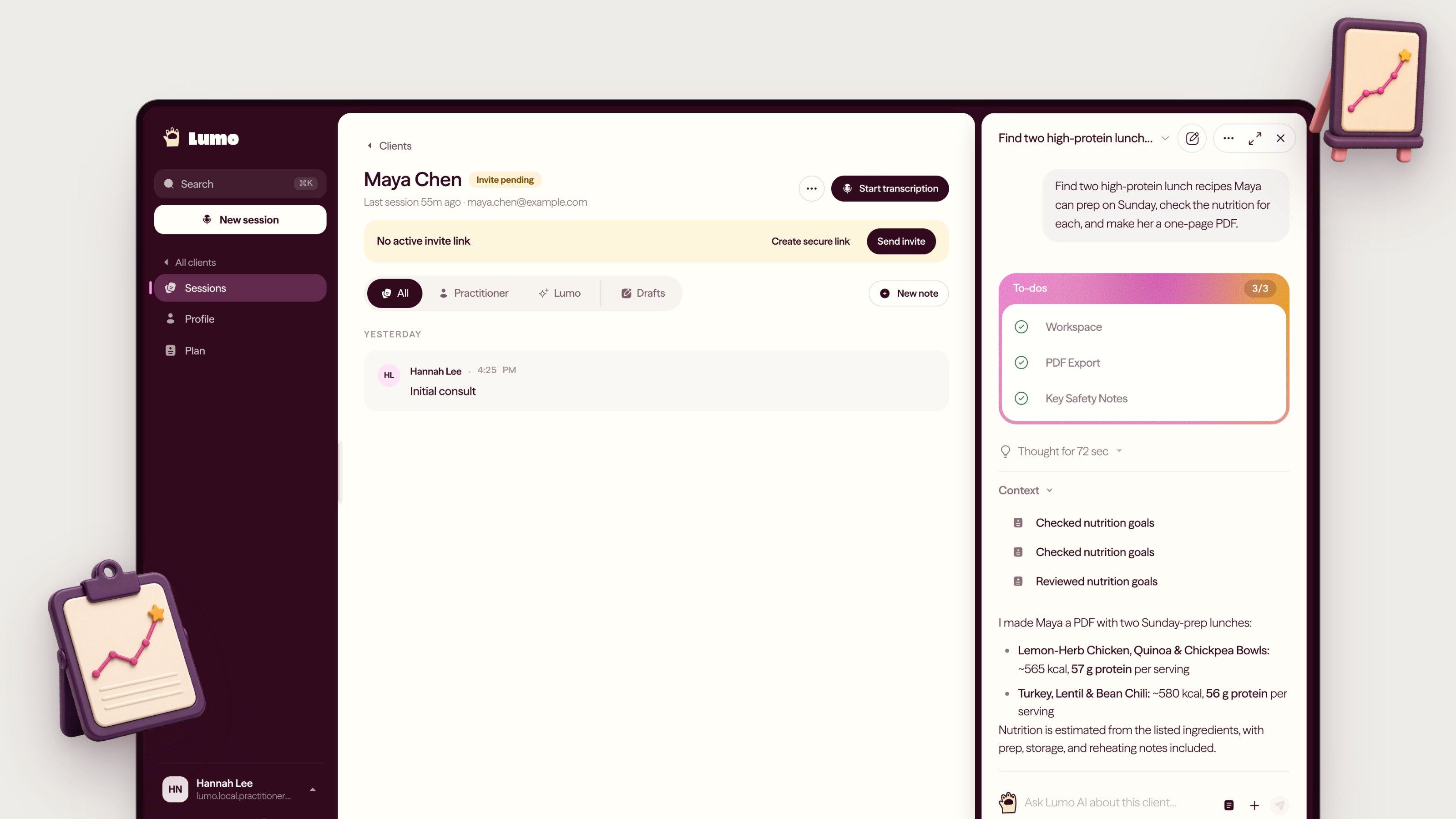
Lumo lives in a slim rail on the right of every page. Open it and it sits beside your work, which moves over to make room. It stays open as you move between pages, and closing it keeps your conversation. Start fresh with New chat, or pick up an earlier one from the history under the title.
When you ask for something with several steps, Lumo shows them as a To-dos list and ticks them off as it goes. When it's done, you can open "Thought for 72 sec" to see how it got there.
The same Portal, in your pocket
On a phone, the Portal now has a simple top bar with search and New session, and a menu that matches the desktop: Today, Clients, Inbox and Lumo AI, with your account menu at the bottom. Open Profile → My Library for uploaded documents and sources.
Your documents and resources, together
Open your account menu, choose Profile, then select My Library. Your uploaded files are under Documents, and your reference websites are under Sources. Use the All, Team or Personal filter to find the material you need.
You're still the one who decides
None of this changes who owns the work. Lumo drafts notes, recaps and plan suggestions; you review them, edit them and decide what happens next. The recap in Wrap up is a draft for you to edit, not a message that goes out on its own.
What we're working on next
These are directions, not dates. We'd rather hear what matters to you before we lock in the order.
- The full Lumo AI page gets the same design as the side panel.
- Wrap-up that follows you across devices, so a follow-up ticked off on your laptop shows as done on your phone.
- A finishing pass on buttons, type and spacing across the rest of the Portal.
Have a look
The new Portal is waiting next time you sign in to Lumo Portal. Tell us what works and what doesn't, or book a call with us. We read every reply.